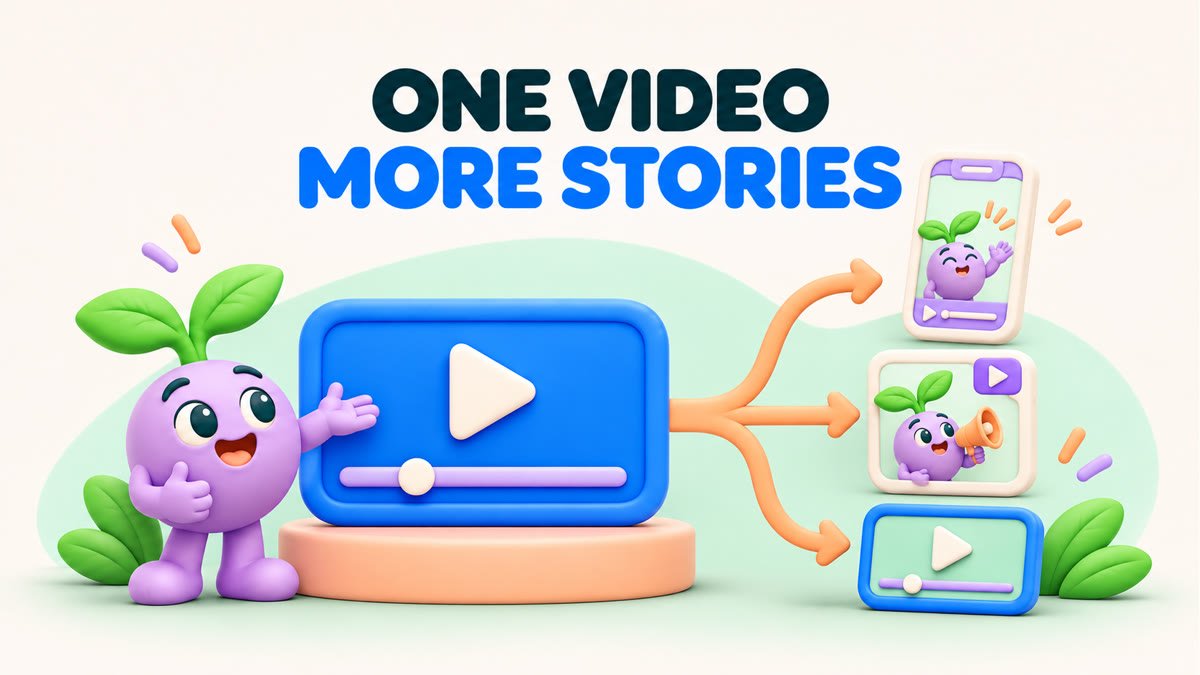
Your new explainer video is live. It introduces the problem, shows how your product helps and gives viewers a clear next step. But the same story may also be useful to someone scrolling a social feed, comparing a feature or reading a sales follow-up. Each person needs a different entry point.
B2B video repurposing means adapting existing video content for a specific audience, placement and purpose. An animated explainer can supply the visual building blocks for several useful assets: a short introduction, a focused feature demo, an answer to a buyer question and a supporting website animation. Here is how to plan those versions without losing the story.
Why video repurposing matters for B2B teams
Wistia’s 2026 State of Video research reports that companies are creating more videos while fewer plan to increase spending. It also identifies product, educational and social videos among the formats teams are prioritising. That makes planning multiple uses for an approved animation a practical discussion for marketing teams working within a defined budget.
Source: Wistia’s 2026 State of Video research
Repurposing does not make every edit equally valuable. A shorter clip still needs to make sense when someone sees it for the first time. Give each version its own opening, useful point and relevant next step.
Start with the audience and the job of each version
Before selecting scenes, decide who will watch the next version and what they need to understand. The original explainer may explain the complete offer. A social clip or sales asset usually has a narrower job.
- For someone discovering your brand: establish a recognisable problem and introduce the product category.
- For someone evaluating a feature: show a clear action and the result the product actually delivers.
- For someone discussing a purchase: answer a specific question and lead to the appropriate product page or conversation.
Create a short brief for every planned asset: audience, viewer question, main message, destination and required format. This gives the editor a reason for including each scene and keeps the campaign connected to the buyer’s decision.
Five useful assets to build from one explainer video
1. A social introduction
Open with a situation your audience recognises, then connect it to one product benefit. Replace a slow brand introduction with context that helps a new viewer understand why the subject matters. A short clip can invite people to watch the fuller explanation on your website.
2. A focused feature demo
Take one product moment and give it enough context to work alone. Show what the user does, what changes and why that change is useful. If the original animation uses an abstract interface, check whether a more accurate product view is needed for a feature demonstration.
3. An answer to a buyer question
Build a clip around a recurring question from sales conversations. For example, explain how a team reviews work before approval. Add a new opening or voiceover if the original scene assumes knowledge the viewer does not yet have. Keep any feature or security claim aligned with approved product information.
4. A sales follow-up video
Create a focused version that a salesperson can send after a relevant conversation. Introduce the workflow the buyer asked about and provide a clear next step. A descriptive thumbnail and a link to a page containing the video can make the asset easier to understand before someone presses play.
5. A supporting website loop
A short motion graphic can illustrate a concept beside a feature description. Choose a sequence with a natural beginning and end, and make sure the nearby text communicates the essential information. If it plays automatically, use an appropriate motion control and avoid making the animation the only way to understand the feature.
An example campaign for a SaaS explainer
Consider a fictional project-management product with a 90-second explainer about reviewing and approving work. The marketing team could use the approved scenes as a starting point for the following plan. These lengths are planning examples, rather than platform requirements.
- Website explainer: the complete 90-second introduction, ending with an invitation to explore the product.
- Social introduction: a 20-second version about scattered feedback, leading to the full explanation.
- Feature demo: a 30-second walkthrough of leaving a comment and reviewing the next version.
- Sales follow-up: a 25-second answer to how a reviewer gives approval.
- Feature-page loop: a brief, silent visual showing a task moving into an approved state.
The shared animation style makes the assets recognisable as one campaign. Their scripts and edits differ because each has a different task. If a clip needs new information, plan the extra design or animation instead of forcing an unsuitable scene to fit.
Related guide: planning a product launch video
Design motion graphics for different screens
Changing a horizontal video into a vertical format can require a new layout. A wide product dashboard, two characters facing each other or a long line of text may become unreadable when cropped. Reposition the elements and simplify the composition around the important action.
Keep interface labels, captions and calls to action large enough to read on a phone. Review them in the intended viewing size, including the space used by the destination platform’s controls. Preview the final upload where possible, because an export that looks clear in an editing application can feel different inside a feed.
Make the message understandable with the sound off, while keeping captions accurate when there is speech. Use sound and music to support the story, then review the version with audio enabled too. Captions should complement the visuals without covering the product detail being demonstrated.
Plan reusable scenes before production starts
If you know a campaign needs several versions, include them in the storyboard brief. Keep important scenes understandable on their own, leave room for alternative layouts and identify which openings or end cards will change. Editable source assets can make those revisions more manageable.
- Confirm the required placements and formats before animation.
- Identify scenes that can communicate one complete idea independently.
- Keep approved logos, text, product screens and calls to action editable.
- Agree which versions need a new voiceover, captions or additional animation.
- Record review contacts, delivery files and the scope of future updates.
Related guide: explainer video storyboards
Measure each asset against its own purpose
A social introduction and a sales follow-up reach people in different situations. Decide what success means for each before publishing. For an introduction, you might track relevant visits to the full explanation. For a feature clip, review viewing behaviour alongside the next product action you want to support.
Use consistent campaign names and tagged links where your analytics setup supports them. Compare results with the audience, placement and distribution method in mind. View counts from different platforms may use different definitions, so they are not a complete basis for judging which edit worked best.
Common questions about B2B video repurposing
Can an existing explainer be repurposed without the source files?
A finished video may support straightforward cuts and some overlays. Changes to character positions, interface details or text inside the animation can be harder without editable assets. Have a studio review the available files before agreeing to the new versions.
How many clips should one explainer produce?
Use the number of useful, self-contained messages as the starting point. A small set of clear assets can serve a campaign better than many similar cuts. The story, available footage and distribution plan determine how much material is worth creating.
Is repurposing always cheaper than making a new video?
Reusing approved material can reduce some work, but a new script, layout, voiceover or animation still has a production cost. Compare the actual scope with a fresh production. If the original message or product information has changed substantially, rebuilding may be more practical.
Build a useful campaign with Anigem Studio
Anigem Studio creates explainer videos and motion design to help businesses communicate clearly. Share your existing video, available source files, target audience and the places you want to use the content. We can discuss which scenes are suitable for adaptation and where a new approach would help the message.
Discuss your explainer video campaign with Anigem Studio
Explore our explainer video services
← All studio notes