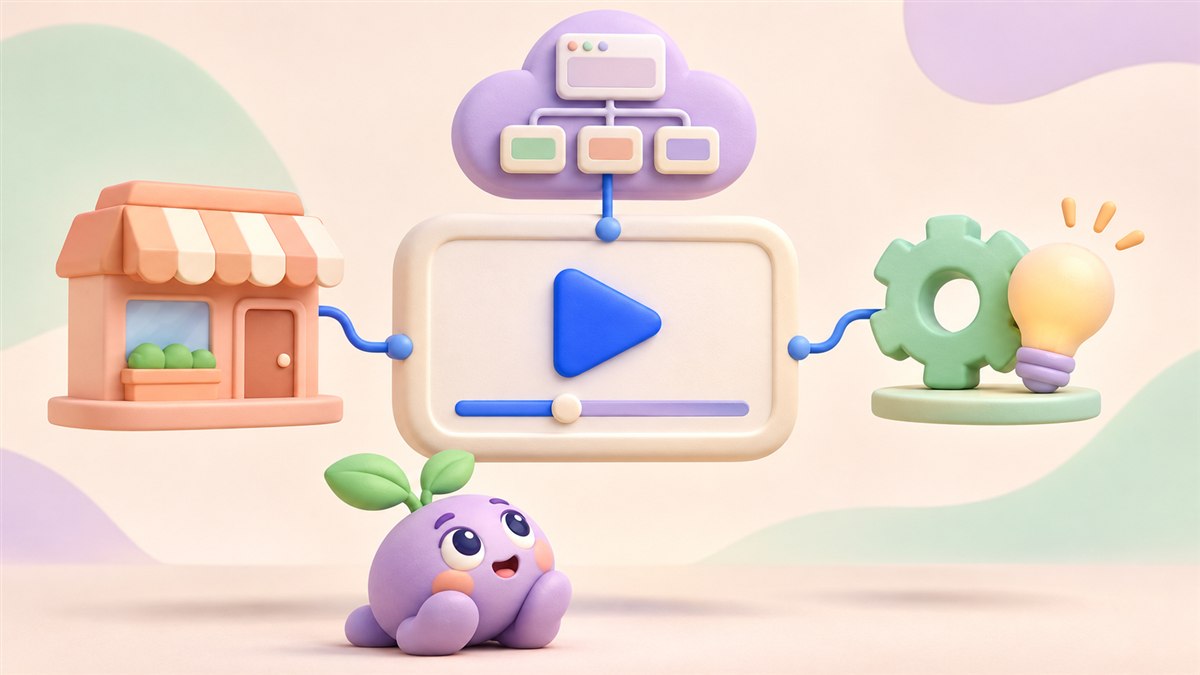
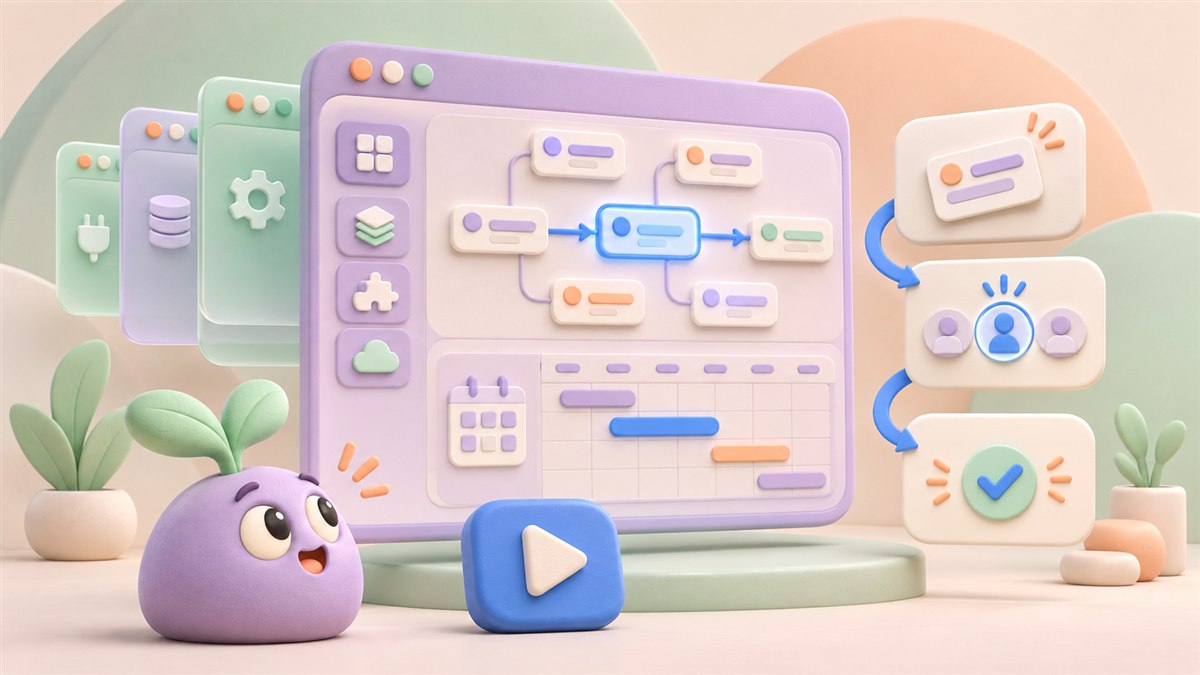
"It connects our data, applies our rules, and helps teams make better decisions." That description could fit many software products. A prospective customer still needs to understand which decisions, what the software actually does, and where it fits into their working day.
A useful SaaS video makes one of those jobs concrete. It follows a recognisable situation, shows the product's role, and gives the viewer enough context to understand the result.
This guide uses a fictional capacity-planning tool to show how you can turn a complicated software description into a focused script and storyboard.
1. Choose the person and the question
Start with the role of the viewer. An operations manager, a team lead, and an IT buyer can look at the same platform and ask different questions.
The operations manager may want to know how to allocate next week's work. The team lead may need to check who is already booked. The IT buyer may be concerned with how project information enters the system. Giving each question equal weight in one introduction can make the story difficult to follow.
For our example, the audience is an operations manager, and the question is: "When a deadline changes, how do I see who has capacity for the work?" That gives the video a practical starting point.
2. Write a product promise in everyday language
An internal product description might mention data ingestion, configurable allocation rules, and scenario modelling. Those details can matter, but they need a context the viewer understands.
For the fictional tool, a customer-facing description could be:
Bring project bookings and team availability into one view so you can review the options before assigning the next job.
The sentence identifies the information, the action, and the purpose. It also leaves room for the human decision. It does not suggest that the platform automatically selects the perfect person or guarantees a particular outcome.
Try reading your own sentence without the product name. Can someone still describe the job it helps with? If the answer remains vague, narrow the promise before writing more scenes.
3. Choose a workflow that demonstrates the promise
Select a small sequence with a visible beginning and end. Our planning example starts with a changed deadline and finishes with the manager reviewing an updated assignment.
The viewer needs to see the information that supports that decision. They do not need an opening tour of every navigation item, report, permission, or integration.
Collect the facts behind the workflow before scripting it:
- What triggers the task?
- Which information does the user need?
- What action does the person take?
- What changes in the product as a result?
- Which checks or approvals are still required?
Use a product specialist to verify the answers. If availability data must be refreshed manually, include that dependency when it matters to the explanation.
4. Turn the workflow into a script and storyboard
Below is an illustrative five-scene structure. The sample lines describe a fictional product; your own version should use behaviour confirmed by your product team.
Scene 1: Establish the situation
Narration: "A deadline moves. Your team's bookings are spread across projects, so it's hard to see who can take on the work."
Visual: A changed project date appears beside several separate booking cards. Keep the scene focused on the manager's question. A few clear elements can establish the situation without filling the frame with tiny screens.
Scene 2: Introduce the product's role
Narration: "Bring current project bookings and team availability into one planning view."
Visual: Show the relevant information coming together in the interface. If it comes from another system, a simple labelled connection can explain the source. Preserve any important limitations about what is included and how current the information is.
Scene 3: Show the useful action
Narration: "Compare the options, spot a conflict, and adjust the assignment."
Visual: Highlight the conflicting booking, then show the manager comparing an alternative. Let the audience notice the relevant information before the cursor moves. Show a credible action the actual product supports.
Scene 4: Make the result visible
Narration: "Review the updated workload before you confirm the plan."
Visual: Show the revised booking and the workload it affects. Keep the review or confirmation step visible. The result is a clearer plan for the manager to assess, rather than a promise that software has removed every scheduling risk.
Scene 5: Offer a relevant next step
Narration: "See the planning workflow in a guided demo."
Visual: End with a clear invitation that matches the page or presentation. A prospect exploring the product may be ready for a demo; a signed-in user may instead need a link to the task they have just learned about.
This structure links the situation, product, action, and result. Each scene has a distinct job, making it easier to identify which information belongs elsewhere.
Read our guide to writing an explainer video script
5. Match the visual detail to the explanation
Choose interface footage when the viewer needs to learn exact controls and steps. Use simplified UI when the task is to introduce a concept, provided it still represents the product accurately.
Diagrams can explain relationships that are hard to see in a screen recording, such as information passing between systems. Animation can guide attention to a change in status, an updated booking, or a dependency between tasks.
Keep the meaning of colours, shapes, and movement consistent. If blue identifies the selected assignment, preserve that meaning as the scene changes. Avoid making several unrelated elements compete for attention at the moment the viewer needs to understand one action.
For a complex platform, a combination can work well: a simplified diagram establishes the relationship, then real interface footage shows the practical action.
Explore our broader guide to SaaS product animation
6. Give technical details a clear place
Some information matters enough to include in the main story. Other details can be covered in a separate video, a written explanation, or a conversation with the team.
Use the audience's question to decide. If the viewer is evaluating whether an integration is available, that connection may need to be shown early. If they are deciding whether the planning workflow is relevant, an extended explanation of configuration settings may interrupt the task.
Keep qualifications that materially affect the promise. A feature available only on a particular plan, a required approval, or a manual data import should be addressed where relevant. Simplifying the presentation should preserve the facts people need to judge the product.
7. Test understanding before polishing the animation
Show the storyboard or rough cut to someone unfamiliar with the platform. Ask open questions instead of leading them towards the answer you want.
- Who do you think this product is for?
- What situation did it help with?
- What did the person do in the software?
- What information would you still need?
- What would you expect to happen after the final invitation?
Look for missing context in the answers. If someone remembers the animation but cannot describe the task, revisit the sequence, terminology, or pacing. This review is more useful before every transition and illustration has been polished.
8. Prepare the video for its actual placement
Review important text at the size it will appear on a phone or within your website. The person watching should have enough time to read an important label without pausing every scene.
Plan accessibility alongside the script. Captions, transcripts, descriptions of essential visual information, and an accessible player serve different needs. W3C's media planning guidance can help you decide what your video requires and include it in the production brief.
Use W3C's accessible media planning guidance
Give the surrounding page a clear headline, supporting explanation, and relevant next step. After publication, combine viewing information with feedback and the action the video was intended to support. Watch time alone cannot tell you whether someone understood the product.
Common questions about explaining complex SaaS products
What if the product serves several audiences?
Choose a primary audience for the main introduction. Use separate feature videos, landing pages, or follow-up material for substantially different questions. A shared visual style can connect those explanations without forcing them into one script.
Can we start before the interface is finished?
You can develop the audience, message, and storyboard while the UI is in progress. Agree on which screens are approved before producing detailed interface animation. Clearly identify concepts or planned capabilities when presenting them, and review the final video against the released product.
How much of the product should the video show?
Show enough to explain the chosen workflow and its relevant limitations. Keep additional features available for people who want a deeper demonstration. A focused introduction can help someone decide what they want to investigate next.
Bring a clear workflow to your animation brief
You do not need to explain your entire platform in the first conversation. Bring the audience, the question they need answered, a walkthrough of one real task, and the place the video will appear. Approved screens and an accurate account of the product's behaviour will help shape the scenes.
At Anigem Studio, we can help turn that workflow into a clear visual story, using animation and motion design that fit your software and brand. Share the product you need to explain, and we can discuss a suitable approach.
Explore our product animation services
Discuss your SaaS video with Anigem Studio
← All studio notes